

31 October 2026 · 14 min read
What Is an M3U Playlist for IPTV? Files, URLs and How They Work
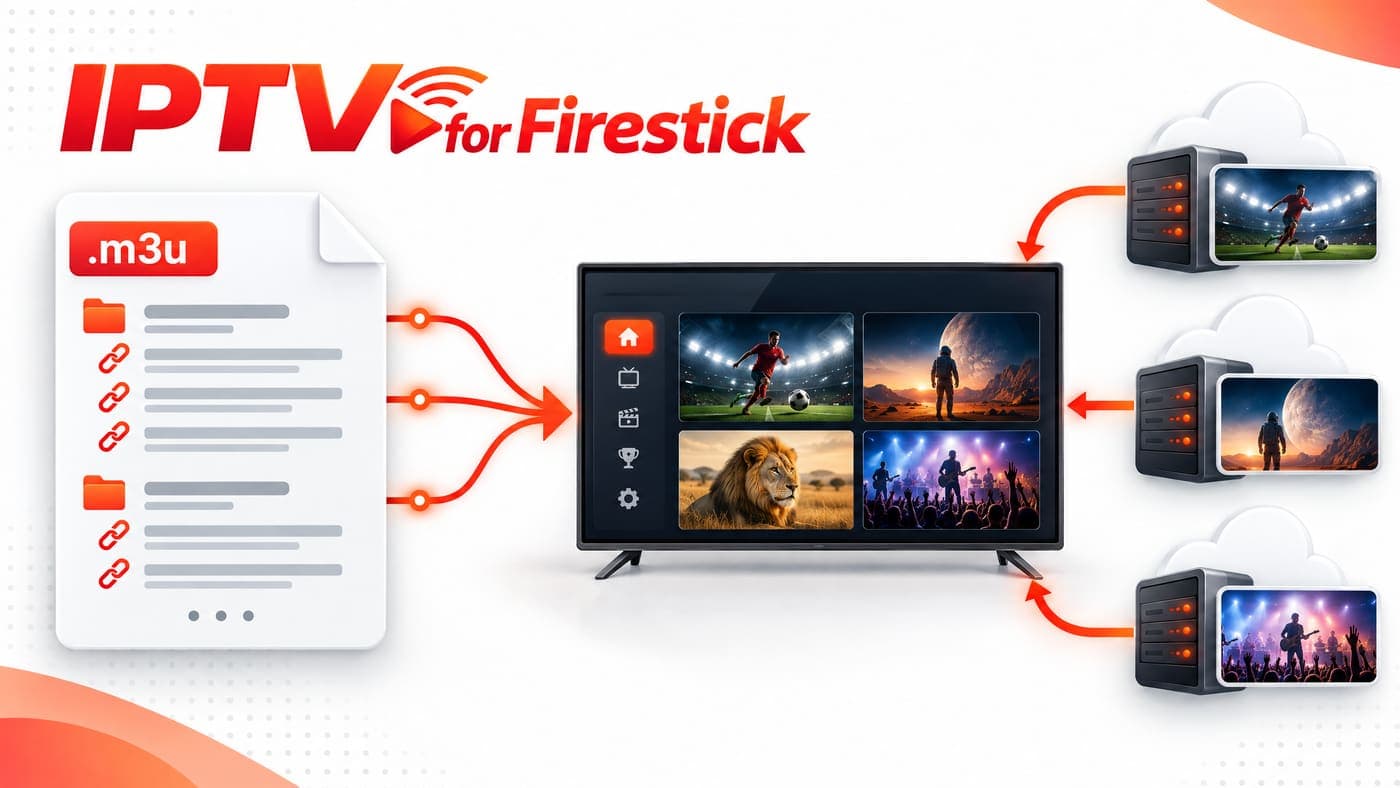
An M3U playlist IPTV file is a simple text file that contains links to audio or video streams, along with information that helps a media player organise the content. In IPTV, it is commonly used to list television channels, channel names, groups and other details in one place.
You may receive an IPTV M3U playlist as a downloadable file or a URL from your service provider. You can then load it into a compatible IPTV player and access the channels included in that playlist.
However, an M3U file does not contain the actual television channels or video streams. It mainly stores the information and addresses that a media player uses to find and play the content. This is an important difference, especially when you are trying to understand how an IPTV subscription works.
In this guide, we will explain what an M3U playlist is, how an IPTV M3U playlist URL works, the difference between M3U and M3U8, how to open these files, and how to fix common playlist problems.
What Is an M3U Playlist?
M3U stands for MP3 URL, although the format is not limited to MP3 audio files. It is a plain-text playlist format that can contain references to different media files and streams.
In IPTV, an M3U playlist works like a channel directory. It tells a compatible player where to find each stream and can include additional information such as channel names, logos, groups and programme guide identifiers.
For example, an IPTV playlist may contain:
- Live television channel names
- Links to individual video streams
- Channel group information
- Channel logos
- EPG identifiers
- Other metadata supported by the player
When you load the playlist into an IPTV application, the player reads these entries and displays the available channels.
The actual playback depends on whether the stream links are active, whether your account has permission to access them, and whether your player supports the required streaming format.
What Is an M3U File?
An M3U file is a text-based file that stores a list of media locations. It does not normally store the complete video or audio content itself.
You can open an M3U file with a basic text editor, such as Notepad on Windows. You will usually see a collection of text entries, including media information and file paths or URLs.
For IPTV, these entries generally point to online streams rather than media files stored on your computer.
An M3U file commonly uses the .m3u extension. Some playlists use .m3u8, which is a UTF-8 encoded version of the playlist format. Both can be used to describe playlists, but M3U8 is also widely used for HTTP Live Streaming (HLS) manifests.
What Does an M3U File Contain?
An IPTV M3U file can contain several types of information.
| Element | Purpose |
|---|---|
| #EXTM3U | Identifies the file as an extended M3U playlist |
| #EXTINF | Provides information about the next media entry |
| Channel name | Displays the name of the channel |
| Stream URL | Points to the media stream |
| tvg-id | Connects a channel with an EPG entry when supported |
| tvg-logo | Provides a channel logo URL when supported |
| group-title | Places channels into categories or groups |
Not every IPTV playlist contains all these fields. The information depends on how the playlist was created and what the provider supplies.
How Does an IPTV M3U Playlist Work?
An IPTV M3U playlist works by giving a compatible player the information needed to locate and organise available streams.
The process is relatively simple. Your provider supplies the playlist, you add it to an IPTV player, and the player reads the entries and displays the channels.
Here is how it normally works:
- 1
Playlist creation
A service or playlist creator prepares an M3U file containing stream addresses and channel information.
- 2
Playlist delivery
You receive the file or an IPTV M3U playlist URL.
- 3
Player connection
You enter the URL or import the file into a compatible IPTV application.
- 4
Playlist processing
The application reads the channel names, groups and stream addresses.
- 5
Channel selection
You choose a channel from the displayed list.
- 6
Stream playback
The player requests the selected stream and attempts to play it.
Diagram: IPTV provider to M3U playlist URL to IPTV player to channel list to video stream
The important point is that the playlist and the stream are two different things. The playlist tells the player where to find the content, while the stream provides the actual video or audio.
If a stream address stops working, the channel may disappear or fail to play even when the M3U file itself is still readable.
What Is an IPTV M3U Playlist URL?
An IPTV M3U playlist URL is an internet address that allows a compatible player to access a playlist without requiring you to download a separate file first.
Instead of importing a file from your computer, you paste the playlist URL into the application. The player then requests the playlist from the server and loads the available entries.
A provider may supply an address that looks similar to this:
Some providers also use personalised URLs containing account details or access tokens. These links can provide access to private subscription information, so you should treat them like passwords.
M3U File vs M3U Playlist URL
Both methods can provide the same type of playlist information, but the way you access them is different.
| Feature | M3U File | IPTV M3U Playlist URL |
|---|---|---|
| Format | Downloadable text file | Web address |
| How to add | Upload or import the file | Paste the URL |
| Internet access | Required for online streams | Required to retrieve and play streams |
| Updates | May require a new file | Can retrieve an updated playlist when refreshed |
| Storage | Saved on your device | Usually accessed from the provider's server |
| Common use | Local playlist import | Remote playlist connection |
A downloaded file is useful when you want to keep a local copy. A URL is often more convenient when the provider updates the playlist remotely.
However, a URL does not guarantee automatic updates in every player. Some applications cache playlist information or require you to refresh it manually.
Understanding M3U File Format and Structure
To understand an M3U playlist properly, it helps to look at its structure. The file is usually made up of text lines that describe the playlist and identify each media source.
An extended IPTV playlist may look like this:
Let's understand the important parts.
1. The #EXTM3U Header
Most extended M3U playlists begin with #EXTM3U. This tells the application that the file uses the extended M3U format. It is normally placed at the beginning of the playlist.
If the header is missing or the file has been damaged, some applications may fail to recognise it correctly.
2. The #EXTINF Tag
The #EXTINF line provides information about the media entry that follows it.
For example: #EXTINF:-1,Example News
Here, -1 is commonly used for an unknown or unspecified duration in IPTV playlists. The text after the comma is the display name that a player can show in its channel list.
The next line normally contains the media address.
3. Channel Names and Groups
Some IPTV playlists include extra attributes to organise the channels.
For example: group-title="Sports" and tvg-name="Example Sports".
The group-title attribute can help a player organise channels into categories. The tvg-name attribute provides a channel name that compatible players can use.
This makes large IPTV playlists easier to browse.
4. Channel Logos and EPG Information
A playlist may also include a logo address and an EPG identifier.
For example: tvg-logo="https://example.com/logo.png" and tvg-id="example.channel".
The logo can be displayed beside a channel name if the player supports it. The EPG identifier can help match the channel with programme information from a compatible electronic programme guide.
Not all players interpret these attributes in the same way. Therefore, a playlist may display correctly in one application but show missing logos or programme information in another.
M3U vs M3U8: What Is the Difference?
M3U and M3U8 are closely related playlist formats. However, they are not always used for exactly the same purpose.
M3U is a general playlist format that can contain references to media files or online streams. M3U8 is a UTF-8 encoded version of the M3U playlist format and is widely associated with HLS streaming.
HLS uses an M3U8 manifest to describe how a video stream is delivered. It may contain references to media segments and, in some cases, different quality levels.
| Feature | M3U | M3U8 |
|---|---|---|
| File extension | .m3u | .m3u8 |
| Encoding | Can use different text encodings | UTF-8 |
| Main purpose | General media playlists | UTF-8 playlists, commonly used for HLS |
| IPTV use | Channel lists and stream references | Channel lists or HLS stream manifests |
| Media segments | Can reference media files or streams | HLS manifests can reference video segments |
| Compatibility | Depends on the application | Depends on the application and stream format |
One important distinction: an M3U8 file is not automatically an IPTV channel list. It may instead be an HLS manifest for one particular video stream.
Similarly, changing the file extension from .m3u to .m3u8 does not convert an incompatible stream into a working HLS stream.
How to Open an IPTV M3U Playlist
You can open an M3U playlist in different ways, depending on whether you want to inspect its contents or watch the streams.
If you only want to see the file structure, a text editor is enough. If you want to watch IPTV channels, you need a compatible media player.
1. Open an M3U File on Windows
Windows users can inspect an M3U file using Notepad.
- 1
Locate the file
Find the downloaded .m3u file on your computer.
- 2
Right-click the file
Open the context menu for that playlist file.
- 3
Select Open with
Choose the option that lets you pick an application.
- 4
Choose Notepad
Open the playlist as plain text.
- 5
Review the entries
Check the playlist entries and stream addresses. If you want to play the playlist, use a compatible media player that supports M3U imports.
2. Open an M3U Playlist on VLC Media Player
VLC Media Player supports many M3U playlists and media streams.
To open a local playlist:
- 1
Open VLC Media Player
Launch the application on your computer.
- 2
Select Media from the menu
Open the Media menu at the top of the window.
- 3
Choose Open File
Select the option for opening a local media file.
- 4
Locate your M3U playlist
Find the downloaded playlist on your device.
- 5
Select the file and open it
Confirm the selection so VLC can load the playlist.
To use a playlist URL, select the option for opening a network stream and enter the address supplied by your authorised provider.
Playback still depends on whether the stream is available and compatible with VLC.
3. Load an M3U Playlist on Android
Android users can use a compatible IPTV player that supports M3U playlist imports.
The general process is:
- 1
Install a trusted player
Install a trusted player from an official app store.
- 2
Open the application
Launch the IPTV player on your Android device.
- 3
Find the option to add a playlist
Look for Add Playlist, Load M3U or a similar option.
- 4
Select M3U URL or file import
Choose whether you are pasting a URL or importing a downloaded file.
- 5
Enter the playlist details
Enter the playlist address or select your downloaded file, then allow the player to load the available channels.
The exact steps vary between applications.
4. Use an M3U Playlist on Firestick
Firestick users can also access M3U playlists through compatible IPTV applications.
First, check whether the application supports M3U files or playlist URLs. Then follow the application's instructions to add the playlist.
Some Fire TV devices use Fire OS, while newer models may use Vega OS. Application compatibility and installation methods can differ between these systems, so check your exact device model before installing a player.
If you need help setting up IPTV on Firestick, read our Firestick IPTV UK guide.
What Is the Difference Between an M3U Playlist and Xtream Codes?
M3U and Xtream Codes are two different ways of connecting an IPTV player to a compatible service.
An M3U playlist normally provides a list of stream addresses and related channel information. Xtream Codes is a login method that commonly uses a server address, username, and password.
Some IPTV applications support both methods.
| Feature | M3U Playlist | Xtream Codes |
|---|---|---|
| Login method | Playlist URL or file | Server URL, username and password |
| Channel information | Stored in playlist entries | Retrieved through the service's connection |
| Setup | Import or paste playlist | Enter login details |
| EPG | May be included or supplied separately | Depends on service and player |
| Compatibility | Requires M3U support | Requires Xtream Codes support |
Neither method guarantees better streaming quality. Playback depends on the source, internet connection, player, and server.
You should use whichever login method your provider officially supports.
What Are the Advantages of Using M3U IPTV Playlists?
M3U playlists are widely used because they provide a straightforward way to organise and access media streams.
Here are some of the main advantages.
Simple Playlist Management
An M3U file can store multiple channel entries in one place. Instead of adding every stream individually, you can import the playlist into a compatible application.
Works with Different Media Players
Many media players support M3U playlists. This gives users flexibility when choosing an application for their computer, phone, or television.
However, support for additional features such as EPG, logos, and channel groups varies.
Easy to Update
When an IPTV provider supplies a remotely hosted playlist, it may update the channel information on its server. You can refresh the playlist in a compatible application to retrieve the latest version.
This is more convenient than manually editing a local file, although updates depend on the provider and player.
Organised Channel Categories
Extended M3U playlists can contain group information. This helps separate sports, news, entertainment, and other categories when the player supports those fields.
Easy to Inspect
Because an M3U file is text-based, you can open it in a text editor and check its structure. This is useful when troubleshooting missing entries or incorrect stream addresses.
Common M3U Playlist Problems and How to Fix Them
An IPTV M3U playlist may load correctly one day and stop working later. This does not always mean that the file itself is damaged.
The issue may come from an expired account, changed stream address, incorrect URL, server problem, or unsupported format.
| Problem | Possible Cause | Solution |
|---|---|---|
| M3U playlist not loading | Incorrect URL or invalid file | Check the address and file structure |
| Playlist is empty | Source returned no entries | Contact the provider and confirm account status |
| Channels not playing | Stream address is unavailable | Test another channel and check the source |
| M3U URL expired | Access token or subscription expired | Request a valid link from the provider |
| Channel names are missing | Incorrect or incomplete metadata | Refresh the playlist or check player support |
| EPG not showing | Missing guide data or incorrect IDs | Check the EPG source and channel mapping |
| Buffering during playback | Network or stream delivery problem | Test your connection and another stream |
| Playlist works in one app only | Different format or player support | Check application compatibility |
Check Whether Your M3U URL Is Correct
A small mistake in an IPTV M3U playlist URL can prevent the player from accessing the playlist.
Check that you copied the complete address. Look for missing characters, spaces or incorrect punctuation.
If your provider uses a personalised URL, do not modify its parameters unless the provider tells you to.
Check Your Subscription Status
Some playlist URLs are linked to an active account or subscription. If the subscription expires or access is disabled, the player may no longer retrieve the playlist or play its streams.
Contact your provider to confirm that your account is active and the playlist link is valid.
Refresh the IPTV Playlist
If your provider has updated the channel list, your player may still be using an older version.
Look for a refresh, reload or update playlist option in your application. If the playlist is stored locally, you may need to import the updated file.
Check the Internet Connection
Buffering is different from a playlist loading error. If the channels appear but video playback keeps stopping, check your internet connection first.
You can also test another channel or use a different network to identify whether the problem is related to your connection or the stream source.
How to Keep Your IPTV M3U Playlist Safe
An M3U playlist URL may contain private account information or access credentials. Anyone who obtains a personalised link may be able to use it, depending on the provider's security settings.
Keep these points in mind:
- Do not share your private M3U URL publicly.
- Avoid uploading subscription playlists to unknown websites.
- Use trusted IPTV applications from official sources.
- Do not install unknown files just to open an M3U playlist.
- Check the privacy policy of online playlist editors and players.
- Remove or replace exposed playlist links by contacting your provider.
- Use only streams and services that you are authorised to access.
An M3U file is not inherently dangerous, but the links inside it can connect to external servers. Treat unfamiliar playlist URLs with the same care you would give to other links containing private account access.
How to Choose an IPTV Service That Supports M3U Playlists
If you are choosing an IPTV service, do not focus only on the number of channels advertised. You should first confirm that the provider supports the player and device you intend to use.
Some services provide M3U playlist URLs, while others offer Xtream Codes or their own applications. The available connection method can affect how you set up the service.
Before subscribing, check the following:
| Factor | What to Check |
|---|---|
| M3U support | Does the provider supply an M3U playlist URL or file? |
| Player compatibility | Does it work with your preferred IPTV application? |
| Device support | Is your Firestick, Android TV, Smart TV or mobile device supported? |
| EPG information | Does the service provide programme guide data? |
| Playlist updates | How are channel changes and updates handled? |
| Stream availability | Are the channels you need available and working? |
| Customer support | Can the provider help with setup and connection issues? |
| Subscription terms | Are pricing, renewal and cancellation conditions clear? |
| Content rights | Is the service authorised to distribute the content it offers? |
For Firestick users, it is especially important to check device compatibility before purchasing a subscription. Not every IPTV application works on every Fire TV model.
You can explore the Fire IPTV Hub subscription plans and contact the team to confirm the available connection method and compatible setup before choosing a plan.
Frequently Asked Questions
What is an M3U playlist for IPTV?
An M3U playlist is a text file containing channel names and stream links that a compatible IPTV player uses to access available content.
What is an M3U file?
An M3U file is a text-based playlist that stores links or locations of audio and video files. In IPTV, it commonly contains references to television streams.
What is an IPTV M3U playlist URL?
An IPTV M3U playlist URL is a web address that lets an IPTV player retrieve a channel list directly from a server without importing a downloaded file.
How do I open an M3U playlist?
You can open an M3U file with a text editor to view its contents or import it into a compatible media player, such as VLC or an IPTV application, to play its streams.
What is the difference between M3U and M3U8?
M3U is a general playlist format, while M3U8 uses UTF-8 encoding and is commonly used for HLS streaming manifests. Both can reference media streams.
Can I use an M3U playlist on Firestick?
Yes. You can use an M3U playlist on a compatible Firestick IPTV application. Check that the app supports M3U files or playlist URLs and your device model.
Why is my IPTV M3U playlist not working?
Common reasons include an incorrect playlist URL, expired access, unavailable streams, internet problems or an unsupported player. Check your login details and refresh the playlist.
Does an M3U playlist include IPTV channels?
An M3U playlist contains channel information and stream addresses, not usually the actual video content. You need an accessible, authorised source for the channels to play.
Final Thoughts
An M3U playlist IPTV file is a simple but important part of how many IPTV services organise and deliver channel information. It contains references to media streams, channel names and other details that a compatible player uses to display the available content.
You can receive an IPTV M3U playlist as a downloadable file or a playlist URL. Both methods can work well, provided your player supports the format and the stream addresses are active.
Understanding the difference between M3U and M3U8, knowing how to load a playlist and recognising common connection problems will make IPTV setup much easier. Before using any playlist, check its source, protect your login details and make sure the content is authorised for access.