

15 November 2026 · 12 min read
IPTV Solutions: A Complete Guide to IPTV Services, Apps and Streaming
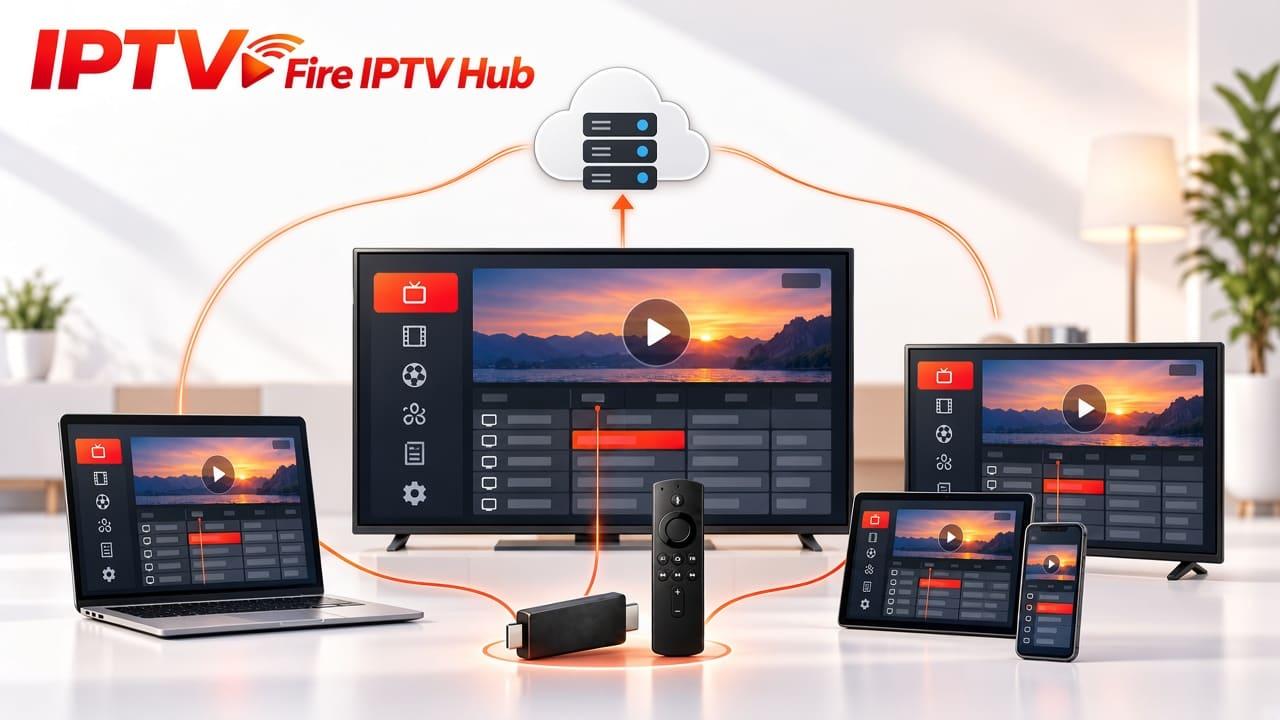
IPTV solutions provide another way to watch television through an internet connection. Instead of depending on traditional cable or satellite services, users can access live TV channels, films and television series through compatible streaming devices and applications.
Whether you use an Amazon Firestick, Android TV box, Smart TV, smartphone or computer, there are different IPTV solutions available for your viewing needs. However, choosing the right option involves more than selecting an IPTV application. You also need a suitable subscription, a compatible device and a stable internet connection.
This guide explains how IPTV solutions work, which devices and apps you can use, what features to consider and how to set up your IPTV service.
What Are IPTV Solutions?
IPTV stands for Internet Protocol Television. It delivers television content through an internet connection rather than traditional broadcast methods.
IPTV solutions include the services, applications and devices that allow users to stream television online. A typical home setup has three main components:
- IPTV service: Provides access to live TV channels and available on-demand content.
- IPTV player: An application that loads and displays your IPTV channels and playlists.
- Streaming device: Hardware such as an Amazon Firestick, Android TV box or Smart TV used to watch content.
Some providers supply login details through Xtream Codes API, while others offer an M3U playlist URL. You enter the information into a compatible IPTV player to access the content included in your subscription.
It is important to understand that an IPTV player and an IPTV subscription are not the same thing. A player manages and displays content, while the service or provider supplies the channel and VOD access.
Different Types of IPTV Solutions
IPTV solutions are available for different devices and viewing environments. Your choice depends on where you want to watch television and which applications your device supports.
| IPTV solution | Main purpose | Suitable devices |
|---|---|---|
| Firestick IPTV | Stream television through Amazon Fire TV devices | Fire TV Stick and compatible Fire TV devices |
| Smart TV IPTV | Watch IPTV through compatible television apps | Samsung, LG and other supported Smart TVs |
| Android IPTV | Access IPTV through Android applications | Android phones, tablets and TV boxes |
| PC IPTV | Watch IPTV on a desktop or laptop | Windows and compatible computers |
| Web-based IPTV | Access streams through a supported browser | Computers and supported mobile browsers |
1. Firestick IPTV Solutions
Firestick IPTV is a popular option for people who want to watch internet television directly on their television. An Amazon Fire TV Stick connects to an HDMI port and uses your internet connection to run supported streaming applications.
You can install a compatible IPTV player, enter your subscription details and organise your channels into categories. Some players also support electronic programme guides, favourites and catch-up features when the service provides the required data.
Before installing an application, check your Fire TV device's operating system and app compatibility. Not every Fire TV model supports the same installation methods.
2. Smart TV IPTV Solutions
Smart TV IPTV solutions allow users to stream television without connecting a separate streaming device. Depending on the television model, you may be able to install an IPTV player from its application store.
Samsung and LG televisions use different operating systems, so app availability can vary. Check whether your selected IPTV player supports your TV before purchasing a subscription.
If your television does not support the required application, you can consider a compatible external streaming device.
3. Android IPTV Solutions
Android IPTV solutions are useful for people who want to watch content on phones, tablets and Android TV boxes. Many IPTV players support M3U playlists and Xtream Codes login details.
You can also use features such as channel categories, favourites, subtitles and EPG information, depending on the application and the data supplied by your provider.
4. IPTV Solutions for PC and Web Browsers
You do not always need a television to use IPTV. Some applications and web-based players allow you to stream content on a laptop or desktop computer.
VLC Media Player, for example, can open supported network streams and M3U playlists. Browser-based IPTV players may also be available, although their compatibility depends on the stream format and browser.
What Features Should You Look for in IPTV Solutions?
Not every IPTV service or application offers the same features. Before choosing an option, consider the following points.
| Feature | Why it matters |
|---|---|
| Live TV channels | Provides access to available television channels |
| Video on Demand (VOD) | Allows users to watch available films and series |
| Electronic Programme Guide (EPG) | Displays programme schedules for supported channels |
| HD and 4K support | Helps deliver higher-resolution streams when available |
| M3U support | Allows users to load compatible playlist URLs |
| Xtream Codes API | Provides an alternative login method |
| Multi-device support | Allows use on supported devices within the subscription limits |
| Customer support | Helps with activation, installation and troubleshooting |
A good IPTV setup should be easy to configure and compatible with your preferred device. You should also check the actual content availability, connection limits and subscription conditions before making a decision.
How to Set Up an IPTV Solution on Firestick
Setting up IPTV on a Firestick usually involves installing a compatible player and entering your subscription details.
Follow these basic steps:
- 1
Connect your Firestick
Connect your Firestick to your television and a stable Wi-Fi network.
- 2
Find a compatible IPTV player
Open the Amazon Appstore and look for a compatible IPTV player.
- 3
Install the application
Install an application that supports your provider's login method.
- 4
Open the player
Open the player and select the available login option.
- 5
Enter subscription details
Enter your M3U playlist URL or Xtream Codes details.
- 6
Load channels and programme information
Allow the application to load your channels and available programme information.
- 7
Test streaming quality
Open a channel to test playback and check the streaming quality.
The exact steps may differ between applications and Fire TV models. You can read our Firestick IPTV guide for more information about compatible setups and subscription options.
IPTV Solutions: Free Apps vs Paid Subscriptions
One common misunderstanding is that installing an IPTV application automatically provides access to television channels. Most IPTV players do not supply channels themselves. You need a compatible content source or subscription.
| Free IPTV apps | Paid IPTV subscriptions |
|---|---|
| Some players are available without a purchase | Require payment according to the selected package |
| May support M3U playlists or network streams | Provide access to content included in the subscription |
| Do not necessarily include TV channels | Channel and VOD availability depends on the provider |
| Features may be limited | Features and support vary by provider |
You can use a free IPTV player with a separate subscription. Before paying for any service, check its content details, device compatibility, renewal conditions and applicable viewing rights.
Common IPTV Problems and Their Solutions
Even a properly configured IPTV setup can experience playback problems. Many issues are related to the internet connection, incorrect login details or application settings.
| Common problem | Possible solution |
|---|---|
| IPTV buffering | Check your internet speed and restart your router |
| Login failed | Recheck your username, password and server URL |
| Channels not loading | Confirm that your subscription is active |
| EPG not updating | Refresh the programme guide in your IPTV player |
| M3U playlist error | Check whether the playlist URL is correct and active |
| Application keeps crashing | Update the player or clear its cache if supported |
| Poor streaming quality | Check your connection and select a suitable available stream quality |
If the problem continues, contact your IPTV provider or application support team. Avoid repeatedly changing settings without identifying the cause of the issue.
How to Choose the Right IPTV Solution in the UK
UK viewers have different requirements depending on their devices, preferred channels and viewing habits. Consider these factors before selecting an IPTV solution:
- Device compatibility: Make sure the service and player work with your Firestick, Smart TV or Android device.
- Content availability: Check the channels, films and series included in the package.
- Streaming quality: Confirm which resolutions are available and whether your internet connection can support them.
- Subscription duration: Compare monthly and longer-term packages before committing.
- Connection limits: Check how many devices can use the subscription simultaneously.
- Support options: Find out how to contact the provider if you need installation or account assistance.
- Viewing rights: Make sure the service is authorised to provide the content in your location.
A shorter subscription or available trial can help you test compatibility and playback before choosing a longer package.
Explore Firestick IPTV Solutions with Fire IPTV Hub
If you are looking for an IPTV solution for your Firestick or another compatible device, Fire IPTV Hub provides subscription options for viewers in the UK.
You can explore packages with access to live TV channels and a Video on Demand library. The available plans offer different subscription durations and streaming options, allowing you to compare packages according to your viewing requirements.
Before selecting a plan, check the current package details, supported devices and connection limits. You can also contact the team for help with subscription activation and setup.
Visit Fire IPTV Hub to explore the available Firestick IPTV subscription options.
Final Thoughts
The right IPTV solutions depend on your preferred device, streaming requirements and content needs. Firestick, Smart TV, Android and PC options all provide different ways to access IPTV through compatible applications.
Before choosing a service, check device compatibility, available channels, streaming quality, subscription conditions and customer support. A suitable IPTV player combined with a reliable and authorised subscription can make online television easier to manage and enjoy.