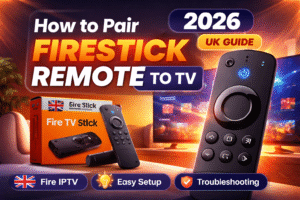
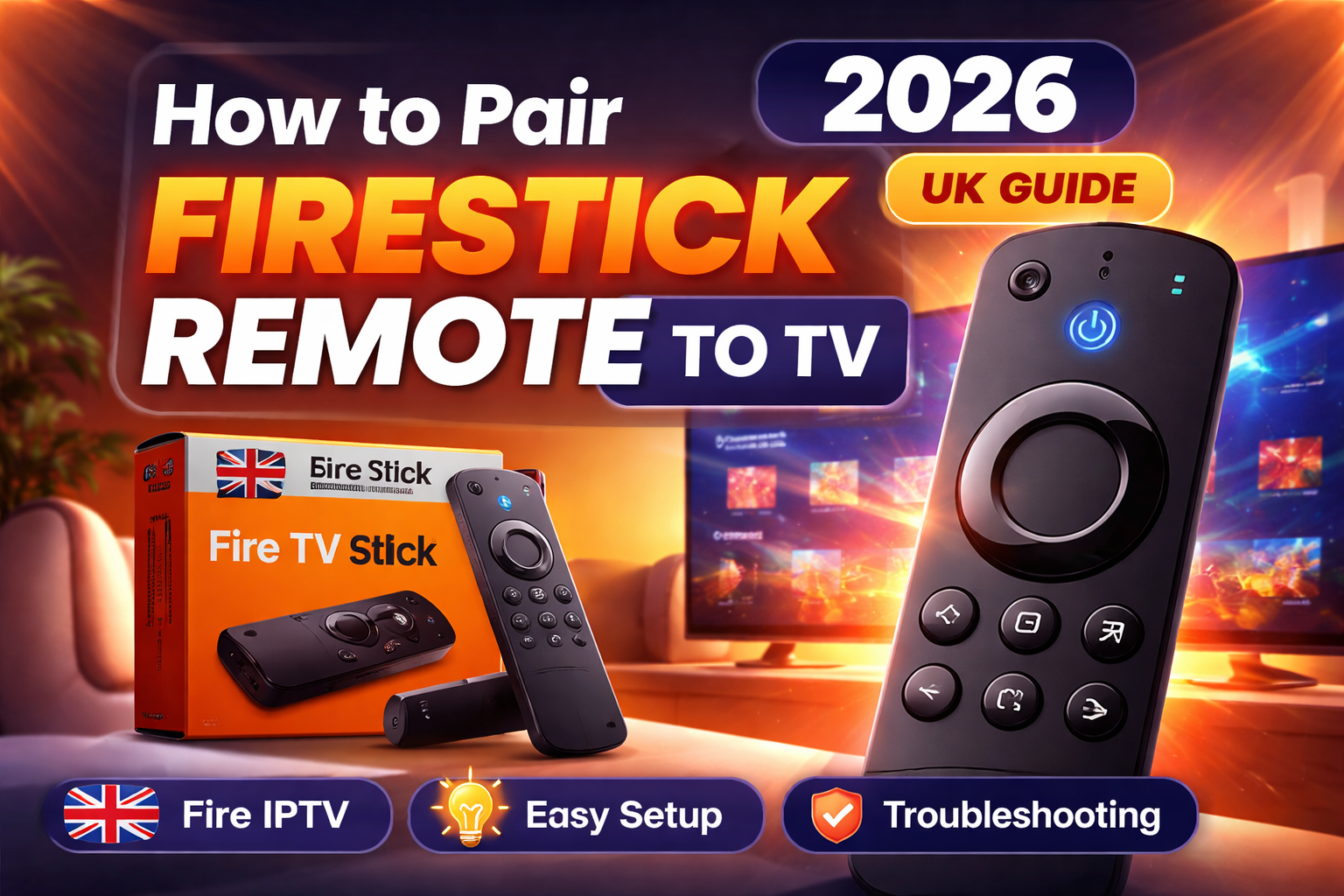
If your Firestick remote is not responding, not syncing, or your TV isn’t recognizing it, you’re not alone. This is one of the most common issues Fire TV users face, especially when setting up Firestick IPTV, reinstalling apps, or switching TVs.
This complete UK-focused guide explains how to pair Firestick remote to TV, fix common pairing issues, and shows why correct remote pairing is essential for smooth Fire IPTV and IPTV Smarters Pro usage.
Whether you’re a new Fire TV user or setting up a Firestick IPTV subscription, this guide covers everything step by step.
How to Pair Firestick Remote to TV (All Fire TV Models)
This method works for:
- Amazon Fire TV Stick
- Fire TV Stick Lite
- Fire TV Stick 4K / 4K Max
- Fire IPTV setups
Step 1: Power Everything Properly
- Plug your Amazon Fire TV Stick directly into the TV’s HDMI port
- Connect it to power using the original adapter
- Insert fresh batteries into the Firestick remote
A weak power source is one of the biggest reasons a Firestick remote won’t pair.
Step 2: Put the Firestick Remote into Pairing Mode
To sync the remote:
- Hold the Home button for 10 seconds
- Keep the remote within 30 cm of the Firestick
- Wait for the on-screen message confirming the connection
This is the correct way to pair Firestick and remote on all modern Fire TV devices.
Step 3: Complete Pairing from Fire TV Settings (If Needed)
If automatic pairing doesn’t start:
- Go to Settings
- Select Controllers & Bluetooth Devices
- Open Amazon Fire TV Remotes
- Choose Add New Remote
- Hold the Home button again until paired
This is the safest method if you’re wondering how to sync Firestick remote manually.
Firestick Remote Not Working or Not Pairing? Fix It First
If pairing fails, don’t reset everything immediately. Try these proven fixes first.
Restart Firestick & Remote
- Unplug Firestick for 30 seconds
- Remove remote batteries
- Power everything back on
- Retry pairing
Reset an Unresponsive Firestick Remote
If the remote is completely frozen:
- Remove batteries
- Unplug Firestick
- Wait 30 seconds
- Plug Firestick back in
- Reinsert batteries
- Hold Home for 10 seconds
This solves most Firestick remote not working issues.
Firestick Remote Blinking Orange?
That means the remote is searching for the Fire TV device.
Fix:
- Move closer to the Firestick
- Remove nearby Bluetooth devices
- Restart Firestick
- Retry pairing
How to Connect Firestick Remote to TV (Samsung, Sony, TCL)
The pairing process is the same, but input selection matters.
Samsung TV
- Switch TV input to the Firestick HDMI port
- Hold Home on the Firestick remote for 10 seconds
Sony TV
- Ensure HDMI-CEC (Bravia Sync) is enabled
- Pair the remote normally
TCL TV
- Use original TV remote to select HDMI input
- Pair Firestick remote using Home button
This resolves most pair Firestick remote to TV brand-specific issues.
Pair Firestick Remote Without a Working Remote (Important)
Lost or broken remote? You still have options.
Option 1: Fire TV Mobile App
- Install Amazon Fire TV App on your phone
- Connect phone and Firestick to the same Wi-Fi
- Use phone as a temporary remote
This is useful when setting up Firestick IPTV or entering Firestick Downloader codes.
Option 2: USB Keyboard (Temporary)
- Use an OTG cable
- Plug in a USB keyboard
- Navigate settings to add a new remote
Why Firestick Remote Pairing Matters for IPTV Users
If you’re using:
- Firestick IPTV
- Fire IPTV UK
- IPTV Smarters Pro
Then a properly paired remote is critical.
Poor pairing causes:
- App freezing
- Navigation delay
- IPTV channel lag
- Smarters Pro input issues
Correct pairing ensures smooth live TV, VOD browsing, and playlist control.
Amazon Fire TV Stick Installation for IPTV (UK Users)
Firestick is one of the most reliable devices for IPTV in the UK.
Basic Installation Steps:
- Set up Firestick
- Pair the Firestick remote
- Enable Apps from Unknown Sources
- Install Downloader
- Use Firestick Downloader codes to install IPTV apps
- Log into IPTV Smarters Pro
This setup works perfectly for Firestick IPTV subscriptions.
IPTV Smarters Pro on Firestick (Remote Tips)
For best experience:
- Use directional buttons, not fast scrolling
- Restart Firestick weekly
- Keep remote firmware updated
- Avoid cheap third-party remotes
This reduces IPTV buffering and control lag.
Firestick IPTV Subscription – What UK Users Should Know
Before choosing a Fire IPTV UK service, ensure:
- Stable servers
- UK channel support
- Compatible with Firestick & IPTV Smarters Pro
- Reliable reseller support
Many users face issues because they buy IPTV without understanding Firestick setup basics.
IPTV Reseller UK – Why Support Matters
A trusted IPTV reseller UK should offer:
- Firestick setup help
- Remote pairing guidance
- App installation support
- Troubleshooting assistance
This is where a proper Fire IPTV Hub help center becomes valuable.
Fire IPTV Hub Help Center (User Support Focus)
A Fire IPTV Hub help center should educate users on:
- Firestick remote pairing
- IPTV app installation
- Firestick updates
- Performance optimization
This builds long-term trust and reduces support tickets.
Final Thoughts
Learning how to pair Firestick remote correctly isn’t just a setup task. It’s the foundation of a smooth Fire IPTV experience.
If you plan to use:
- Firestick IPTV
- IPTV Smarters Pro
- Fire IPTV UK services
Then correct pairing, proper installation, and trusted support make all the difference.
Frequently Asked Questions (FAQs)
How to pair Firestick remote after IPTV app installation?
IPTV apps do not affect pairing. Restart Firestick and hold Home for 10 seconds.
Can Firestick remote issues affect IPTV streaming?
Yes. Laggy or disconnected remotes often cause navigation delays inside IPTV Smarters Pro.
Is Firestick the best device for IPTV in the UK?
Yes. Firestick offers excellent performance, affordability, and app compatibility for IPTV UK users.
Can I pair multiple remotes to one Firestick?
Yes. Firestick supports up to 7 remotes.
What Firestick model is best for IPTV?
Fire TV Stick 4K or 4K Max is recommended for Firestick IPTV subscriptions.