

5 October 2026 · 11 min read
Firestick Vega OS Not Allowing 3rd-Party Apps? Best Alternatives
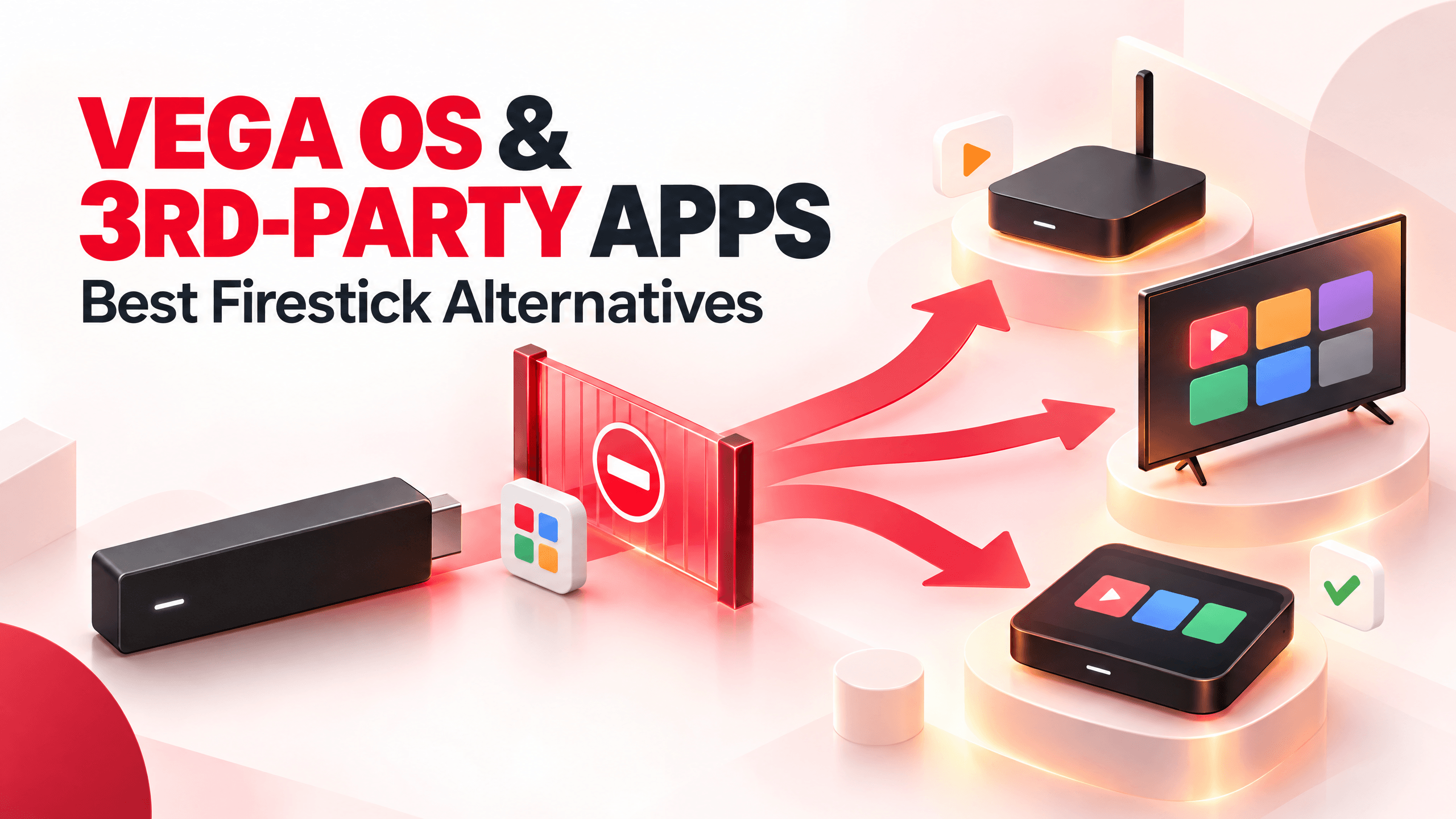
If you have recently bought a Firestick and cannot find Developer Options, Install Unknown Apps, or even the Downloader app, there may be nothing wrong with your device.
You may have a newer Fire TV device running Vega OS.
Vega OS is Amazon's newer operating system for selected Fire TV devices. Unlike the Android-based Fire OS used on many older and current Fire TV models, Vega OS uses a different application platform. This means the traditional method of downloading an APK with Downloader and installing it from an unknown source does not work in the same way.
For users who rely on third-party apps, IPTV players, APK-based applications, or other sideloaded tools, this is an important difference to understand before buying a new Firestick.
Why Can't I Install APKs on My New Firestick?
Older Fire TV devices running Fire OS are Android-based and support Android applications. Amazon's current Fire OS documentation confirms that Fire OS is Android-based and maintains Android app compatibility.
Vega OS is different.
Amazon describes Vega OS as its newer operating system for the next generation of Fire TV streaming devices. It uses its own application framework and development tools rather than the traditional Android APK model.
As a result, if you have a Vega OS Fire TV device, you may notice that:
- Install Unknown Apps is missing
- The old APK installation process does not work
- Downloader may not be available
- Android APK files cannot be installed in the normal Fire OS way
- Android-only third-party apps may not be compatible
- Following an old Firestick sideloading tutorial does not solve the problem
This is not simply a hidden setting that you need to unlock.
Is Every New Firestick Using Vega OS?
No.
This is one of the most important points to understand.
Amazon currently has Fire TV devices using both Fire OS and Vega OS. Amazon's developer documentation identifies the Fire TV Stick 4K Select and Fire TV Stick HD among the Vega OS devices, while other Fire TV Stick models continue to use Fire OS.
Therefore, you should check the exact model and operating system before buying a Firestick specifically for third-party applications.
Fire OS
Fire OS is Android-based and supports Android applications. Traditional Fire TV sideloading methods can still be available on compatible Fire OS devices.
Vega OS
Vega OS uses a different application platform. Normal Android APK sideloading is not supported in the same way.
This distinction is much more useful than simply saying that “Amazon has banned sideloading on all Firesticks.”
How Do I Know If My Firestick Has Vega OS?
If you are unsure whether your device is running Vega OS, check the exact model and software information in the Fire TV settings.
You can also check Amazon's current Fire TV device information before buying a replacement.
The model matters because two devices sold under the Fire TV brand can have very different app compatibility.
If your device has the familiar Install Unknown Apps option and can install Android APKs, it is likely running an Android-based Fire OS version.
If you have a newer Vega device and cannot find the traditional APK installation settings, repeatedly clicking through Developer Options will not turn it into an Android Fire TV device.
Why Doesn't Developer Options Fix the Problem?
This is where many users become confused.
Vega OS does have a Developer Mode for developers who want to test Vega applications. Amazon provides specific Vega development tools and instructions for testing applications on Vega Fire TV hardware.
However, this is not the same as the old Fire OS process:
That process was designed around Android applications and APK packages.
Vega OS uses its own application ecosystem.
So if you have a Vega device and have already enabled developer mode but still cannot find Install Unknown Apps, that does not necessarily mean you missed a step.
You may simply be using an operating system that does not support normal Android APK installation.
Can Downloader Be Installed on Vega OS?
This is another common question.
On compatible Fire OS devices, Downloader can be used as an APK download and installation tool.
On Vega OS devices, however, the traditional Downloader-based Android APK method is not available in the same way.
Recent Fire TV users have reported buying Vega models specifically to discover that Downloader and conventional sideloading were unavailable.
Therefore, installing another “Downloader alternative” does not automatically solve the underlying problem.
The limitation is the operating system, not simply the absence of one particular app.
What About IPTV Apps on Vega OS?
This is particularly important for users who use third-party IPTV players.
If the IPTV application you want is available as a native Vega OS app through Amazon's supported app ecosystem, it may work on a Vega device.
If the application is only distributed as an Android APK, however, you cannot assume that it will work on Vega OS.
The app developer would need to support Vega OS or provide a compatible version.
Amazon has created tools for developers to build and migrate applications for Vega OS, and it also has a cloud app programme that can allow some existing Fire OS apps to be delivered to Vega devices through Amazon's infrastructure.
For users, the practical point is simple:
- Check app compatibility before buying the device.
- Do not buy a Vega Firestick expecting every Android IPTV or streaming APK to work.
What Should You Do If You Already Bought a Vega Firestick?
You have a few options.
- 1
Check Whether Your App Has a Vega Version
First, search the Amazon app ecosystem for the application you need. If the developer has released a Vega-compatible version, you may be able to install it normally. This is the simplest solution because you stay within the supported Fire TV environment.
- 2
Check With the App Developer
If an app is not available, check the developer's official website or support channels. Ask whether the application supports Vega OS, Fire TV Vega, Fire TV Stick HD, and Fire TV Stick 4K Select. Do not assume that an Android APK will work simply because it works on an older Firestick.
- 3
Return or Exchange the Device
If third-party apps are essential to your setup and your purchase can still be returned, exchanging the device may be the simplest option. Before buying another Firestick, verify its operating system first. Do not rely solely on the name “Firestick” or “Fire TV.”
Best Firestick Alternatives for Third-Party Apps
If APK installation and third-party application support are important to you, an Android TV or Google TV device is generally a more suitable direction.
1. Android TV / Google TV Device
Best overall choice for flexibility.
Android TV and Google TV devices provide access to the Google Play ecosystem, while compatible devices can also support sideloading.
The exact process varies by device, but Android TV supports applications through Google Play and can provide options for installing apps outside the Play Store.
This makes a certified Android TV or Google TV device a strong option for users who need more application flexibility.
When buying an Android TV box, however, check whether it is Google-certified and what version of Android TV or Google TV it actually runs. Avoid choosing a cheap box purely because its specifications list a powerful chipset.
2. Google TV Streamer
The Google TV Streamer is another option for users who want a modern Google TV experience rather than Amazon's Vega platform.
It is a better comparison with a Fire TV streaming device than an old Chromecast because Google's current hardware direction is now centred on the Google TV Streamer.
Google TV also provides access to the Play Store, while compatible applications can use Android's app installation system.
If third-party apps are important, check the current compatibility and installation requirements for the specific application before purchasing.
3. NVIDIA SHIELD TV
Best premium option.
For users who want a more powerful Android TV device, NVIDIA SHIELD TV remains a strong option.
SHIELD TV uses Android TV and provides access to the Google Play Store. NVIDIA's current SHIELD documentation confirms that users can access and install apps through Google Play.
It is especially attractive for people who want a device that can handle streaming alongside more demanding applications and gaming.
The main downside is price. It costs considerably more than a basic streaming stick.
4. Android TV Smart TV
If you are replacing your television as well as your streaming device, an Android TV or Google TV television can remove the need for a separate streaming stick.
However, app support still depends on the TV's operating system and the application's requirements.
Check the exact TV model before purchasing if a particular third-party app is essential.
Firestick Vega OS vs Android TV: Which Is Better for Third-Party Apps?
| Feature | Vega OS Fire TV | Android TV / Google TV |
|---|---|---|
| Amazon Appstore | Yes | No |
| Google Play Store | No | Yes |
| Android APK compatibility | No | Generally supported on compatible devices |
| Traditional Firestick sideloading | No | Available on compatible devices |
| Downloader-style APK setup | Not the traditional method | Supported on compatible devices |
| Third-party app flexibility | Limited | Generally greater |
| Best for Amazon streaming apps | Yes | Yes |
| Best for APK-focused users | No | Generally yes |
The important word here is compatible.
Not every Android-based streaming box has the same software, certification or security features. Always check the actual operating system rather than relying on the word “Android” in a product listing.
Should You Still Buy a Firestick in 2026?
It depends on how you use it.
A Vega Fire TV device can make sense if you mainly use:
- Prime Video
- Netflix
- YouTube
- Other officially supported streaming applications
- Amazon's Fire TV ecosystem
Consider another device if you need:
- Android APK installation
- Frequent sideloading
- Third-party Android applications
- An IPTV player that is only available as an APK
- Custom Android tools
- Greater control over application installation
The key is to decide before purchasing, rather than discovering the limitation after setting up the device.
Can You Downgrade Vega OS to Fire OS?
For normal users, you should not buy a Vega Fire TV device expecting to replace its operating system with Fire OS.
Vega OS and Fire OS are different platforms, and Amazon provides separate development environments for them.
There is no normal consumer setting that turns a Vega Firestick into an older Android-based Fire OS device.
Be especially cautious with websites claiming that a simple “jailbreak,” firmware file or hidden Developer Options trick will convert Vega OS into Fire OS.
Installing unofficial firmware can potentially damage the device or create security problems.
What About Future Vega OS Workarounds?
The Vega ecosystem is still developing, and Amazon is actively providing tools for developers to create and migrate applications for the platform.
That means app availability can change.
However, users should not buy a device today based on the assumption that a future workaround will appear.
If you need Android APK support right now, choose a device that officially supports the application installation method you require.
Quick Answer: What's the Best Alternative to Vega Firestick?
If your main priority is third-party application flexibility:
- Best overall: Certified Android TV or Google TV device
- Simple Google option: Google TV Streamer
- Premium option: NVIDIA SHIELD TV
- If you already own a Vega Firestick: Check whether your required app has a native Vega version before replacing the device.
Frequently Asked Questions
Why won't my new Firestick install APK files?
If it runs Vega OS, the traditional Android APK sideloading process is not supported. Check your device model and operating system before trying older Firestick tutorials.
Why can't I find Install Unknown Apps on my Firestick?
You may have a Vega OS device. Vega uses a different application platform, so the traditional Fire OS “Install Unknown Apps” setting for Android APKs is not available in the same way.
Does Vega OS support Downloader?
The traditional Downloader-based Android APK installation method is not supported on Vega OS in the same way it is on compatible Fire OS devices.
Can I install IPTV APKs on Vega OS?
Not as you would on an Android-based Fire OS device. The IPTV application needs to support Vega OS or be available through Amazon's supported application ecosystem.
Can I install Stremio or other Android APKs on Vega OS?
An Android APK should not be assumed to work on Vega OS. The application needs appropriate Vega OS support or another officially supported delivery method.
Is Firestick still good for IPTV?
It depends on the Fire TV model and the IPTV application's compatibility. Older and current Fire OS devices can provide Android app compatibility, while Vega OS devices require applications that support the newer platform.
Can I turn a Vega Firestick back into Fire OS?
There is no normal consumer method for switching a Vega device to Fire OS. Avoid unofficial firmware or “jailbreak” claims unless you fully understand the risks.
What should I buy instead of a Vega Firestick?
A certified Android TV or Google TV device is generally a better choice if third-party applications and APK installation are important. Google TV Streamer is a simple option, while NVIDIA SHIELD TV is a premium choice.
Should I buy an Android TV box for IPTV?
If the IPTV application you use requires Android APK installation, an Android TV or Google TV device can offer more flexibility than a Vega Fire TV device. Check the exact device and app compatibility before buying.
Final Thoughts
The biggest change with Vega OS is not simply a missing Developer Options menu.
It is a change in the underlying platform.
Older Android-based Fire TV devices can support Android applications and traditional sideloading methods. Vega OS uses a different application system, so an Android APK that worked perfectly on an older Firestick cannot simply be transferred to a Vega device and expected to work.
That does not make Vega OS a bad choice for everyone.
If you mainly watch officially supported streaming services, a Vega Fire TV device may be perfectly suitable.
But if your setup depends on third-party apps, APK installation or an IPTV player that is not available for Vega OS, check compatibility before buying.
For those users, a certified Android TV or Google TV device is usually the safer choice because it provides a much more suitable environment for Android applications and greater installation flexibility.