

5 October 2026 · 9 min read
How to Allow Unknown Source App Installation on Firestick
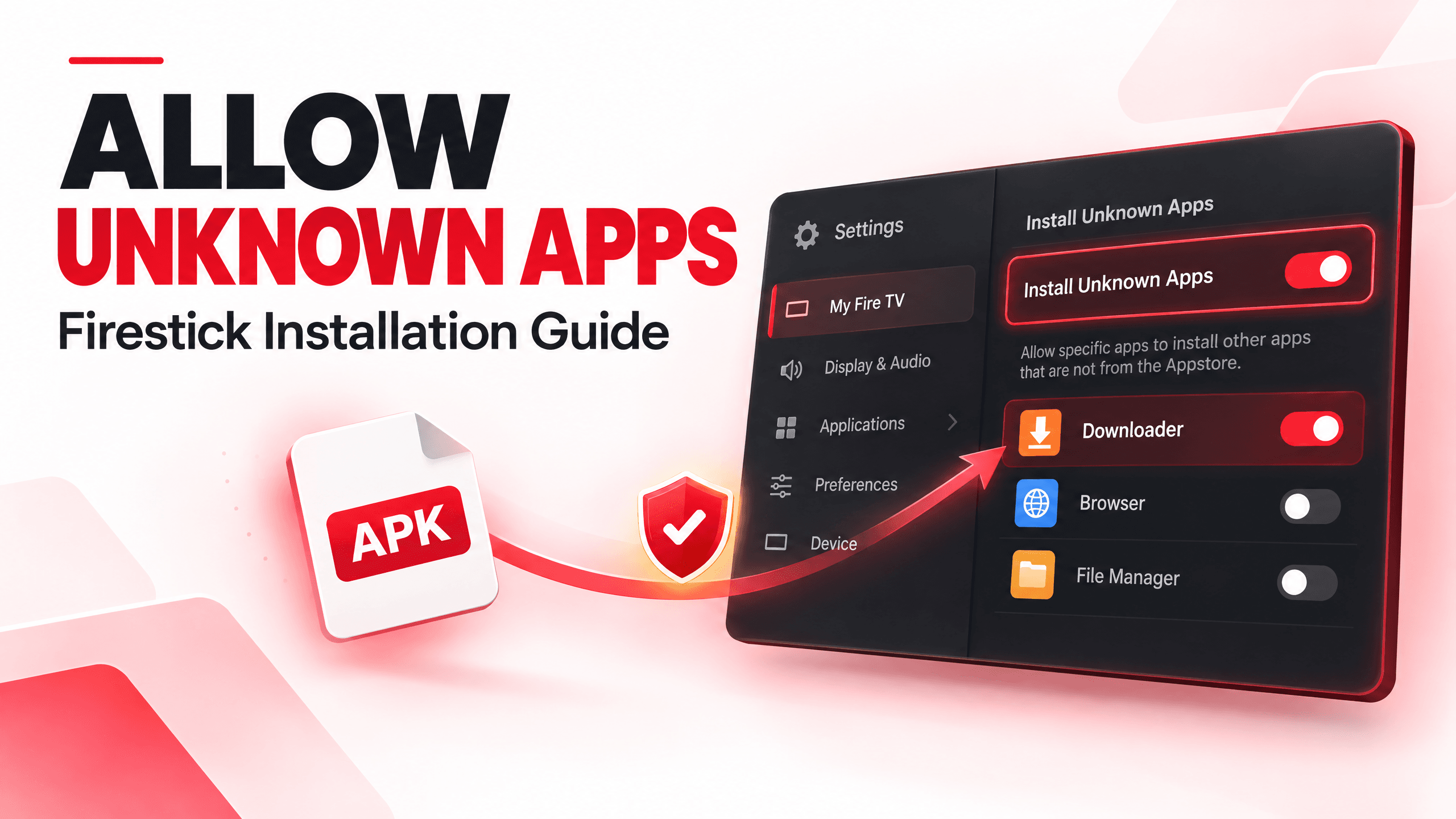
If you are trying to install an APK on your Amazon Firestick or Fire TV but keep getting a message that installation from unknown sources is not allowed, you need to change one security setting first.
Amazon Fire TV devices normally restrict apps installed from outside the Amazon Appstore. To install an APK using an app such as Downloader or a compatible file manager, you may need to enable Install Unknown Apps for that particular app.
The process is slightly different from older Firestick guides, especially on newer Fire OS versions.
This guide explains how to allow unknown source app installation on Firestick, how to find Developer Options, how to permit Downloader, and what to do if the setting is missing.
Quick Answer
To allow an app to install APKs on most newer Firestick and Fire TV devices:
For example, if you use Downloader, select Downloader and enable it.
If you cannot find Developer Options, go to:
You should then see a message confirming that developer mode has been enabled.
What Does “Install Unknown Apps” Mean on Firestick?
“Install Unknown Apps” is a Fire TV security permission.
When it is disabled, Firestick restricts an application from installing apps that did not come through the Amazon Appstore.
When you enable the permission for an installer such as Downloader, that specific app can install compatible APK files.
This does not mean that every app can automatically install other apps.
The permission is normally given to the individual application that you choose.
For example: Downloader → ON. This allows Downloader to install an APK. It does not mean that every application on your Firestick receives the same permission.
How to Allow Unknown Sources on Firestick
Follow these steps on your Firestick.
- 1
Open Firestick Settings
From the Fire TV home screen, select the Settings icon. It normally appears towards the right side of the navigation bar.
- 2
Select My Fire TV
Open My Fire TV. Depending on the Fire OS version or device, the wording and layout may differ slightly. Older Fire TV guides may refer to this area as Device.
- 3
Open Developer Options
Look for Developer Options. On some Firestick devices, this menu is immediately visible. If you cannot find it, you may simply need to unlock the developer menu first.
- 4
Find Install Unknown Apps
Inside Developer Options, look for Install Unknown Apps. Select it. You should see a list of apps that can potentially be given permission to install other applications.
- 5
Select Your Installer
Choose the application you will use to install the APK. For example, Downloader. If you use a different compatible installer, select that application instead.
- 6
Turn the Permission On
Change the selected application's permission to ON. The chosen application can now install compatible apps from outside the Amazon Appstore.
Developer Options Missing on Firestick?
This is one of the most common problems when following older Firestick tutorials.
If you open My Fire TV but cannot see Developer Options, try this:
- 1
Open Settings
Start from the Fire TV settings menu.
- 2
Select My Fire TV
Open the My Fire TV section.
- 3
Open About
Find the About screen for your device.
- 4
Find your Fire TV device
Highlight the device name in the list.
- 5
Press Select seven times
Press the Select/OK button seven times. You should eventually see a message indicating that the device is already a developer or that developer options have been enabled.
Go back to the previous screen and check again. You should now be able to find Developer Options.
Why do older guides look different?
Amazon has changed the Fire TV settings interface across different Fire OS versions.
That is why you may see instructions online referring to:
- Apps from Unknown Sources
- Install Unknown Apps
- Developer Options
- Developer Options and ADB Debugging
The exact wording can depend on the Fire TV device and software version.
For current devices, Install Unknown Apps is the setting you should look for.
How to Enable Unknown Sources for Downloader
Downloader is commonly used to download files and APKs on Fire TV.
If Downloader is already installed:
- 1
Open Settings
Start from the Fire TV home screen.
- 2
Select My Fire TV
Open the My Fire TV menu.
- 3
Open Developer Options
Unlock this menu first if it is hidden.
- 4
Select Install Unknown Apps
Open the list of installer apps.
- 5
Select Downloader
Choose Downloader from the list.
- 6
Turn it ON
Return to Downloader and continue with your APK installation.
What If “Install Unknown Apps” Is Greyed Out?
If you can see the option but cannot change it, first check whether:
- The Firestick software is fully updated.
- You are using the main device profile.
- Developer Options has been enabled correctly.
- The app you want to authorise is actually installed.
- You have restarted the Firestick after changing developer settings.
If the installer application does not appear in the list, install the app first and then return to Settings → My Fire TV → Developer Options → Install Unknown Apps.
The available list can depend on which applications are installed on the device.
Firestick Says “For Your Security, Your TV Is Not Allowed to Install Unknown Apps”
This message normally means that the application attempting to install the APK does not currently have permission.
Go back to Settings → My Fire TV → Developer Options → Install Unknown Apps. Then select the app that is trying to perform the installation.
For example, if you are installing through Downloader: Install Unknown Apps → Downloader → ON.
Return to Downloader and try the installation again.
If the message continues, restart the Firestick and check the permission again.
Can You Install APKs Without Enabling Unknown Apps?
If an APK is being installed outside the Amazon Appstore, the relevant installer may require permission to install unknown apps.
If you are simply installing an application directly from the Amazon Appstore, you do not need this setting.
This distinction is important because enabling the permission is generally unnecessary unless you actually need to install an app from another source.
Is It Safe to Enable Unknown Apps on Firestick?
The setting itself does not automatically install anything dangerous.
The bigger risk is what you choose to install after enabling it.
An APK downloaded from an untrusted source could potentially contain malicious software or request excessive permissions.
Before installing an APK:
- Use a source you trust.
- Check the exact app name.
- Avoid modified or suspicious APK files.
- Do not enter sensitive information into an app you do not trust.
- Be careful with websites offering fake download buttons.
- Remove apps you no longer use.
- Turn off unnecessary permissions where possible.
Most importantly, enabling Install Unknown Apps does not make an APK safe. It simply gives the selected installer permission to install it.
Do You Need Unknown Apps Enabled for IPTV on Firestick?
Not necessarily.
It depends on how the IPTV application is distributed.
If the IPTV player is available through the Amazon Appstore, you can install it through the normal Fire TV process.
If the application is distributed as an APK outside the Amazon Appstore, the installer may require Install Unknown Apps permission.
For example, a user may need this setting when installing a compatible IPTV player through Downloader.
Always obtain the application from a legitimate and trusted source, and check that the app is compatible with your Fire TV device.
What to Do After Enabling Unknown Apps
Once the permission is enabled, return to your installer application.
If you are using Downloader, follow the installation instructions supplied by the application's official developer or trusted source.
After installation:
- Open the new application.
- Check that it works correctly.
- Complete any required setup.
- Review its permissions.
- Remove the APK installer or downloaded file if you no longer need it.
- Consider turning off installation permission for the installer when you have finished.
You can return to Settings → My Fire TV → Developer Options → Install Unknown Apps and switch the permission off when you no longer need it.
Firestick APK Not Installing? Try These Fixes
If you enabled Install Unknown Apps but the APK still will not install, check the following.
- 1
Is the Permission Enabled?
Go back into Developer Options and confirm that the installer is set to ON.
- 2
Is the APK Compatible?
An APK designed for another platform, architecture or Android version may not work correctly on your Fire TV device.
- 3
Is the Download Complete?
A corrupted or incomplete download can cause installation errors. Delete the file and download it again from a trusted source.
- 4
Is There Enough Storage?
Low available storage can prevent an application from installing correctly. Remove applications or files you no longer need.
- 5
Restart Firestick
Restart the Fire TV device and try the installation again.
- 6
Update Fire OS
Check for available Fire TV software updates. An outdated device can sometimes cause compatibility problems with newer applications.
Unknown Apps vs Developer Options: What’s the Difference?
These two terms are often confused.
Developer Options is the broader settings area. It contains different options intended for development, testing and advanced device management.
Install Unknown Apps is the specific permission that controls whether a particular application can install apps from outside the Amazon Appstore.
So, if your goal is simply to install an APK using Downloader, you generally need to find: Developer Options → Install Unknown Apps → Downloader → ON.
You do not need to change unrelated developer settings just to install an APK.
Quick Firestick Unknown Sources Checklist
If you want the process in one place:
- Open Settings
- Select My Fire TV
- Open Developer Options
- Select Install Unknown Apps
- Choose Downloader or your trusted installer
- Turn it ON
- Return to the installer
- Install the compatible APK from a trusted source
Frequently Asked Questions
How do I allow unknown sources on Firestick?
Go to Settings → My Fire TV → Developer Options → Install Unknown Apps, select the application you want to use for installation, and turn the permission on.
Why can’t I find Developer Options on my Firestick?
Go to Settings → My Fire TV → About, highlight your Fire TV device and press the Select button seven times. Then return to My Fire TV and check for Developer Options.
How do I enable unknown sources for Downloader on Firestick?
Open Settings → My Fire TV → Developer Options → Install Unknown Apps → Downloader, then switch Downloader to ON.
Why does my Firestick say it cannot install unknown apps?
The installer probably does not have the required permission. Open Install Unknown Apps and enable the permission for the app you are using to install the APK.
Do I need Downloader to install unknown apps on Firestick?
No. Downloader is one option, but other compatible applications can also install APK files. The important point is that the application performing the installation must have the required permission.
Is enabling unknown apps on Firestick dangerous?
The setting itself does not make an app dangerous. The main risk comes from installing APKs from untrusted or malicious sources. Only install applications from sources you trust.
Can I turn off unknown app installation after installing an APK?
Yes. You can return to Install Unknown Apps and turn the permission off for the installer after you have finished.
Why is my APK still not installing after enabling unknown apps?
Check the APK’s compatibility, your available storage, the download itself and the Firestick’s software version. Restart the device and try again if necessary.
Does every Firestick have the same Developer Options menu?
Not necessarily. Fire TV menus can vary according to the device and Fire OS version. This is why older tutorials may show different names or menu locations.
Do I need to enable unknown apps for every IPTV app?
Only if the particular installation method requires it. Apps installed directly through the Amazon Appstore do not require this permission. An APK installed through an external installer may require it.
Final Thoughts
Enabling Install Unknown Apps on Firestick is straightforward once you know where the setting is.
For most newer Fire TV devices, the process is: Settings → My Fire TV → Developer Options → Install Unknown Apps → Choose your installer → ON.
If Developer Options is missing, use the About → Fire TV Stick → Select seven times method to reveal it.
The most important part is what you do afterwards. Only install APKs from sources you trust, make sure the application is compatible with your Firestick, and avoid giving installation permission to apps you do not recognise.
Once the installation is complete, you can also turn the permission off again to keep your Fire TV setup more controlled.