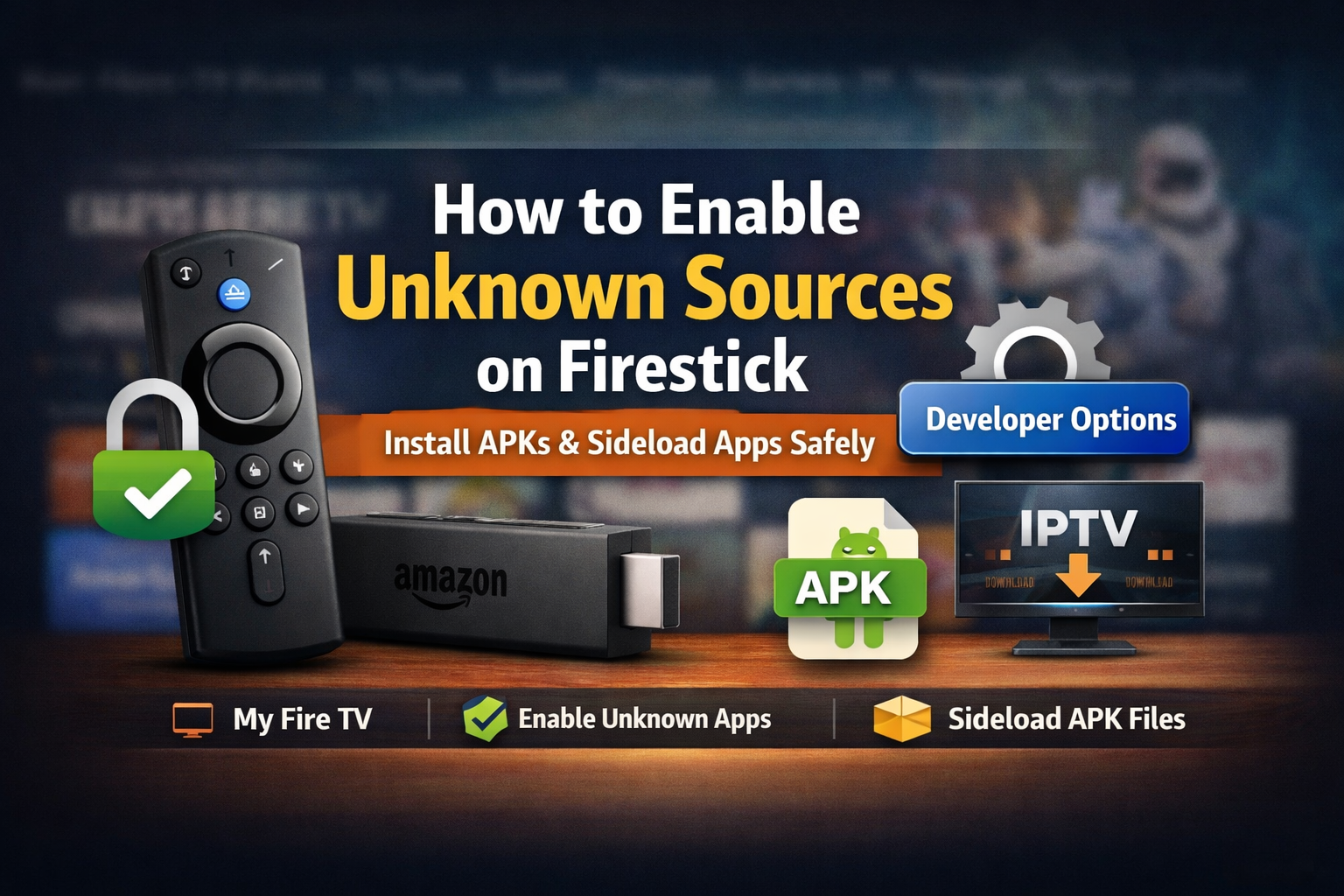
Amazon Firestick is a powerful streaming device, but by default it only allows apps from the Amazon Appstore. Many useful apps such as IPTV players, APK tools, and third-party streaming apps are not available there.
To install these apps, you must enable Apps from Unknown Sources on Firestick. This process is also called sideloading apps on Firestick.
This guide explains how to allow unknown source app installation on Firestick, including what to do if Developer Options are missing, how it works on different Fire OS versions, and how to stay safe.
What Are Unknown Source Apps on Firestick?
Unknown source apps are applications installed outside the Amazon Appstore. These apps usually come as APK files and are installed using apps like:
- Downloader
- File Manager
- APK installers
Because these apps are not reviewed by Amazon, Fire OS blocks them by default for security reasons. You must manually allow permission for each app that installs APKs.
Why Enable Unknown Sources on Firestick?
Enabling unknown sources allows you to:
- Install IPTV apps on Firestick
- Sideload third-party streaming apps
- Install APK files on Fire TV
- Use tools not available on Amazon Appstore
- Customize your Firestick experience
This is required for almost all Firestick IPTV setups.
Step-by-Step: Enable Unknown Apps on Firestick (Latest Fire OS – 2026)
This method works on:
- Fire TV Stick
- Fire TV Stick 4K / 4K Max
- Fire TV Cube
- Fire TV Smart TV
Step 1: Open Firestick Settings
From the Fire TV home screen, go to the top right corner and select Settings (gear icon).
Step 2: Open My Fire TV
Scroll and select My Fire TV.
(On older models, this may be called Device or Device & Software.)
Step 3: Open Developer Options
Select Developer Options.
If Developer Options Are Missing:
This is very common on newer Fire OS versions.
- Open About
- Select Fire TV Stick
- Press the Select button 7 times
- You will see: “You are now a developer”
- Go back to My Fire TV
Developer Options will now appear.
Step 4: Select “Install Unknown Apps”
Inside Developer Options, choose Install unknown apps.
On some older Fire OS versions, this option may appear as:
- Apps from Unknown Sources
Step 5: Allow Permission for Installer Apps
You will see a list of apps such as:
- Downloader
- File Manager
Select the app you use to install APKs (for example, Downloader) and turn it ON.
This allows that specific app to install APK files on Firestick.
You are now ready to sideload apps.
Older Firestick Interfaces
Fire OS 2015 Interface
- Settings
- My Fire TV / Device
- Developer Options
- Apps from Unknown Sources → ON
- Confirm warning
Fire OS 2014 Interface
- Settings
- System
- Developer Options
- Apps from Unknown Sources → ON
These steps still matter for older Fire TV devices and help this guide rank for legacy searches.
Is It Safe to Install Unknown Apps on Firestick?
Yes — if done correctly.
Follow These Safety Tips:
- Only download APKs from trusted sources
- Avoid apps asking for unnecessary permissions
- Keep Fire OS updated
- Use a VPN for privacy (especially IPTV apps)
- Disable unknown sources after installation if not needed
Amazon blocks unknown apps for safety, not legality. Responsibility depends on what you install.
Common Problems & Fixes
Developer Options Not Showing
Fix: Click Fire TV Stick 7 times under About
Install Unknown Apps Greyed Out
Fix: Update Fire OS and restart Firestick
Downloader Not Installing APKs
Fix: Ensure Downloader permission is ON under Install Unknown Apps
Why Amazon Hides Unknown Sources
Amazon wants:
- Better security
- Appstore control
- Reduced piracy risks
But Firestick still allows sideloading for advanced users, developers, and power users.
Conclusion
Allowing unknown source app installation on Firestick unlocks the real power of the device. Whether you want to install IPTV apps, sideload APK files, or use third-party tools, this process is essential.
By following this guide, you can safely enable unknown apps on any Fire TV device, even if Developer Options are hidden.
FAQs – Real User Questions
1. How do I enable unknown sources on Firestick?
Go to Settings → My Fire TV → Developer Options → Install unknown apps, then allow permission for apps like Downloader.
2. Why can’t I see Developer Options on Firestick?
Developer Options are hidden by default. Open About, click Fire TV Stick seven times to enable them.
3. Is sideloading apps on Firestick legal?
Sideloading itself is legal. What matters is which apps you install and how you use them.
4. Which apps need unknown source permission?
Apps like Downloader, File Manager, and APK installers need this permission to install third-party apps.
5. Can I disable unknown sources after installing apps?
Yes. Installed apps will continue working even after disabling unknown source permissions.
6. Does this work on Fire TV Cube and Smart TVs?
Yes. The steps work on Fire TV Stick, Fire TV Cube, and Fire TV Smart TVs.
7. Is it safe to install IPTV apps on Firestick?
It is safe if you use trusted IPTV apps, avoid suspicious APKs, and protect your connection with a VPN.
8. What is sideloading on Firestick?
Sideloading means installing apps manually using APK files instead of the Amazon Appstore.